
Common errors
While learning and working with NestJS, you may run into the errors described on this page.
"Cannot resolve dependency" error#
HintNestJS Devtools can help you resolve the "Cannot resolve dependency" error.
The most common error message says that Nest can't resolve the dependencies of a provider. It usually looks like this:
Nest can't resolve dependencies of the <provider> (?). Please make sure that the argument <unknown_token> at index [<index>] is available in the <module> module.

Potential solutions:
- Is <module> a valid NestJS module?
- If <unknown_token> is a provider, is it part of the current <module>?
- If <unknown_token> is exported from a separate @Module, is that module imported within <module>?
  @Module({
    imports: [ /* the Module containing <unknown_token> */ ]
  })

For more common dependency resolution issues, see: https://docs.nestjs.com/faq/common-errors
The most common cause is that <unknown_token> is not available in <module>: it is neither listed in the module's providers array nor exported by one of the modules in its imports array. Make sure the provider is registered and follows standard NestJS provider practices.
Another common mistake is putting a provider in a module's imports array. If the class is decorated with @Injectable(), Nest detects this at startup and throws an error stating that the class cannot appear in the "imports" array; move it to the providers array instead.
When you run into this error, open the module named in the error message and review its providers. For each provider in the providers array, make sure the module has access to all of its dependencies. Providers are often duplicated in a feature module and the root module, which makes Nest try to instantiate the provider twice. In most cases, you should remove the duplicate and add the module that contains the <provider> to the root module's imports array instead.
Also make sure you didn't inject a provider into itself: self-injection is not allowed in NestJS. When this happens, <unknown_token> is usually equal to <provider>.
If the dependency at the reported index resolves to undefined or Object at runtime, the error message omits the token name, refers to the current module, and lists a different set of potential solutions:
Nest can't resolve dependencies of the <provider> (?). Please make sure that the argument at index [<index>] is available in the current module.

Potential solutions:
- The dependency at index [<index>] appears to be undefined at runtime
- This commonly occurs when using 'import type' instead of 'import' for injectable classes
...
This usually has one of the following causes:
- A circular file import. Unlike the circular dependency described below, the providers don't depend on each other in their constructors; two files end up importing each other. For example, a module file declares a token and imports a provider, and the provider imports that token constant from the module file. If you use barrel files, make sure your barrel imports don't create such circular imports.
- Injecting by a type or an interface. Types and interfaces don't exist at runtime, so Nest can't use them as injection tokens. Inject the class reference instead, or use a custom token with the
@Inject()decorator (see custom providers). - Type-only imports. For class-based providers, import the concrete class instead of only its type with the
import type ...syntax.
In a monorepo setup, you may see the same error for the core ModuleRef provider as the <unknown_token>:
Nest can't resolve dependencies of the <provider> (?).
Please make sure that the argument ModuleRef at index [<index>] is available in the <module> module.
...
This usually happens when your project loads two copies of the @nestjs/core package, like this:
.
├── package.json
├── apps
│   └── api
│       └── node_modules
│           └── @nestjs/bull
│               └── node_modules
│                   └── @nestjs/core
└── node_modules
    ├── (other packages)
    └── @nestjs/core
Solutions:
- For Yarn workspaces, use the nohoist feature to prevent hoisting the
@nestjs/corepackage. - For pnpm workspaces, declare
@nestjs/coreas a peer dependency in your other module, and set"dependenciesMeta": {"other-module-name": {"injected": true }}in the package.json of the app that imports the module. See dependenciesMeta.injected in the pnpm documentation.
"Circular dependency" error#
Occasionally, you'll find it difficult to avoid circular dependencies in your application, and you'll need to help Nest resolve them. Errors caused by circular dependencies look like this:
Nest cannot create the <module> instance.
The module at index [<index>] of the <module> "imports" array is undefined.

Potential causes:
- A circular dependency between modules. Use forwardRef() to avoid it. Read more: https://docs.nestjs.com/fundamentals/circular-dependency
- The module at index [<index>] is of type "undefined". Check your import statements and the type of the module.

Scope [<module_import_chain>]
# example chain AppModule -> FooModule
Circular dependencies can arise from providers that depend on each other, or from TypeScript files that depend on each other for constants (e.g., a module file exports a constant that a service file imports). In the latter case, move the constants to a separate file. In the former case, follow the circular dependency guide and make sure that both the modules and the providers are wrapped with forwardRef().
Debugging dependency errors#
Besides verifying your dependencies manually, you can set the NEST_DEBUG environment variable to any non-empty string to get extra logging while Nest resolves the application's dependencies.
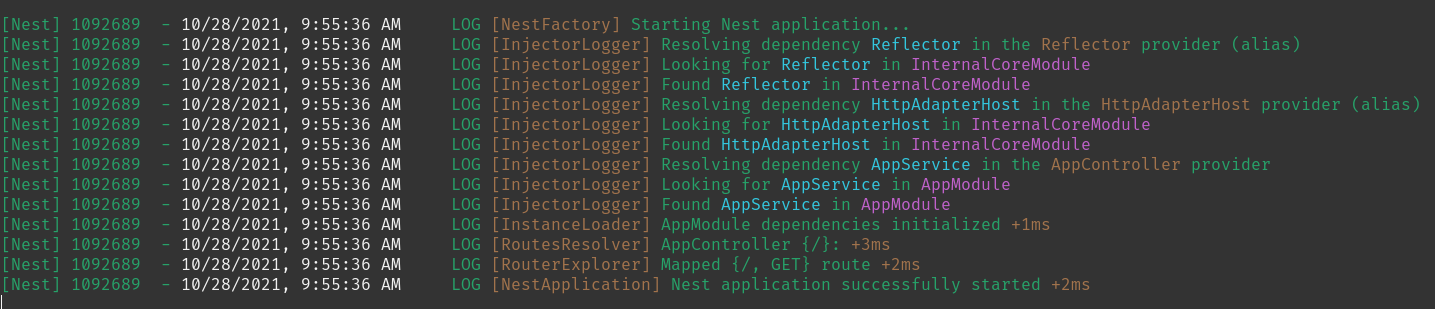
In the image above, the string in yellow is the host class of the dependency being injected, the string in blue is the name (or injection token) of the injected dependency, and the string in purple is the module in which Nest searches for the dependency. With this output, you can usually trace the dependency resolution and find out why injection fails.
"File change detected" loops endlessly#
Windows users on TypeScript 4.9 or later may encounter this problem. When you run your application in watch mode (e.g., npm run start:dev), you see an endless loop of the following log messages:
XX:XX:XX AM - File change detected. Starting incremental compilation...
XX:XX:XX AM - Found 0 errors. Watching for file changes.
When you start your application in watch mode with the Nest CLI, it runs the TypeScript compiler in watch mode (the equivalent of tsc --watch). TypeScript 4.9 introduced a new strategy for detecting file changes, which is the likely cause of this problem.
To fix it, add the following setting to your tsconfig.json file, after the "compilerOptions" option:
  "watchOptions": {
    "watchFile": "fixedPollingInterval"
  }
This tells TypeScript to poll for file changes instead of using file system events (the default since 4.9), which can cause issues on some machines.
To learn more, see the watchFile option in the TypeScript documentation.